


Updated 4 October 2026: every plugin and install step was checked against the RuneLite source code and Plugin Hub on GitHub. We fixed wrong statements, including a plugin that does not exist, and replaced three claims we could not verify.
Top RuneLite Plugins Everyone Should Have (2026 Guide)
RuneLite is a free, open-source client for Old School RuneScape, offering hundreds of plugins that enhance visibility, improve quality of life, and make both PvM and skilling significantly easier. Whether you’re a brand-new player or a maxed veteran, the right plugins can completely transform how smooth and efficient the game feels.
This guide covers the best RuneLite plugins everyone should enable, divided into categories: core quality of life, combat, skilling, questing, and everyday extras. Think of this as a starting RuneLite setup for both casual and serious players.
What Are RuneLite Plugins and Why They Matter
RuneLite plugins are optional features you can toggle on or off to adjust visibility, add tracking tools, highlight objects, modify your UI, and make information more accessible.
Why plugins matter:
- Massive Quality of Life boost
- Better PVM awareness & mechanics learning
- Stronger game sense through information visualization
- Account organization & progression tracking
- Provide data (DPS, XP/hr, loot value, etc.)
- Great for both beginners and end-game players
RuneLite is free. As of October 2026 it is one of two third-party clients on Jagex’s Approved Client List, along with HDOS. Jagex does not allow client features that play the game for you.
Best Overall RuneLite Plugins Everyone Should Enable
These plugins are universally helpful and should be considered "core" to every RuneLite setup.
Tile Indicators
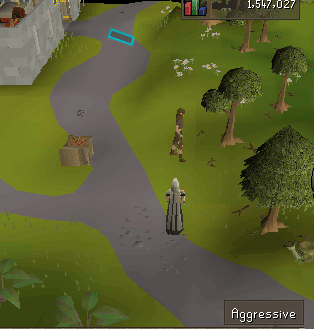
What it does: Shows the tile under your character, your destination tile, and the tile under your mouse. To mark your own tiles, use the separate Ground Markers plugin.Why you want it: Super handy for not misclicking/overrunning things, and later for simple bossing or safe-spotting.
Menu Entry Swapper

What it does: Changes default right-click options (e.g., “Trade” instead of “Talk-To”, “Pickpocket” on top etc.).Why you want it: Fewer misclicks and faster interactions everywhere (banking, pickpocketing, farming, etc.).
GPU
What it does: Improves performance and allows increased draw distance and better visuals.Why you want it: Game runs smoother and looks cleaner, especially in crowded areas or on larger resolutions.
Camera
What it does: Expands the default zoom limits and lets you change zoom speed and camera speed.Why you want it: You can zoom far out for comfort or zoom in for precise clicks. Big QoL once you get used to it.
XP Tracker

What it does: Tracks XP/hr, XP to level, time to level, and session stats per skill.Why you want it: Helps you see which methods are actually good and how long a level realistically takes (great for casual goals).
World Hopper
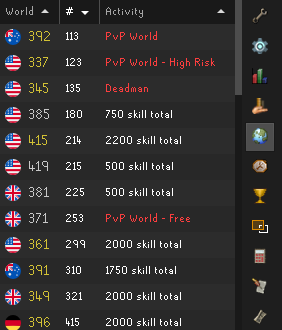
What it does: Lets you hop worlds faster from an interface, with ping, player count, etc.Why you want it: Good for finding less crowded spots, world hopping for shops, or just avoiding laggy worlds.
Logout Timer
What it does: Plugin extends the inactivity timeout to up to 30 minutes, giving you more time before you're forced to log out.
Why you want it: Perfect for casual players who like to AFK. This plugin helps prevent accidental logouts while skilling or doing other tasks. You can take a break without worrying about being kicked out too soon, giving you more flexibility to multitask or just relax.
Entity Hider
What it does: Allows you to hide specific entities (NPCs, other players, pets, projectiles and more) from your view to reduce visual clutter.
Why you want it: Great for casual players who want a cleaner, less distracting environment. By hiding unnecessary NPCs or players, you can focus on the important things, like your tasks or goals, without being overwhelmed by the chaos in crowded areas. Perfect for improving your overall game experience and reducing visual noise.
Must-Have Combat Plugins for PvM and Bossing.
Ground Items
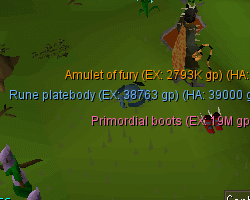
What it does: Shows item names on the floor with value colors, lets you hide junk and highlight valuable drops.Why you want it: No more pixel-hunting for tiny piles, and you won’t miss something pricey because it blended into the floor.
Status Bars
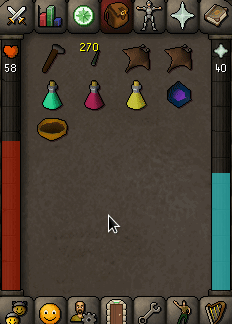
What it does: Shows HP and Prayer bars, or run energy or special attack, next to your inventory.Why you want it: Much easier to notice low HP or Prayer before something kills you. Great safety net for casual AFK-style play.
Loot Tracker

What it does: Tracks loot from NPCs, bosses, chests, etc., and shows GP value.Why you want it: Fun “progress log” of what you’ve earned, and you get a sense of whether an activity is worth it for you.
Chat Commands (kill counts and personal bests)
What it does: Adds chat commands such as !kc and !pb, so you can look up boss kill counts and personal best kill times in chat.
Why you want it: This plugin is perfect for casual players looking to keep track of their progress with bossing. It shows your kill counts and personal best times, making it easier to track your improvements and set new goals without needing to manually record everything. It’s a great way to casually enjoy bossing while still having all the important stats at your fingertips.
NPC Indicators

What it does: Highlights specific NPCs on the screen and minimap with customizable colors and styles. You can tag NPCs by name and track their respawn times.
Why you want it: Perfect for casual players who want to keep an eye on important NPCs, whether for Slayer, bossing, or just NPC hunting. The visual indicators help you spot targets easily, avoid distractions, and manage respawn timings without missing a beat.
Essential Skilling Plugins Every Player Should Enable
Fishing / Woodcutting / Mining (Skill Plugins)

What they do: Show respawn timers for trees and rocks, highlight fishing spots, and track session stats such as XP/hr.Why you want them: Super comfy for casual AFK skilling. You can see when your node is gone or if you’re still getting XP.
Idle Notifier
What it does: Sends a notification when your character goes idle, when your HP or Prayer drops below a level you set, or before you are logged out for being idle.Why you want it: Perfect for chill skilling while doing other stuff on your PC, with less wasted time standing there logged in, doing nothing.
Guardians of the Rift Helper
What it does: Provides helpful overlays and timers for the Guardians of the Rift minigame, including outlines on the active elemental and catalytic guardians, portal timers, and your reward points.
Why you want it: Ideal for casual players who want to get the most out of Guardians of the Rift without the stress of constantly checking guides. The plugin streamlines your gameplay, giving you key info like which guardians are active and when the next portal or game starts, allowing you to focus on the fun without worrying about missing key actions or getting lost in the mechanics.
Tree Despawn Timer

What it does: Shows an estimate of time remaining until a tree in woodcutting will be completely chopped down.
Why you want it: Useful for optimizing woodcutting sessions: pick the right moment to leave a tree or move spots for efficiency.
Left Click Dropper
What it does: Lets you drop specified items with left‑click from your inventory (rather than right‑click → drop).
Why you want it: Speeds up inventory management during AFK skilling or in high‑volume tasks where you’re dropping a lot of stuff.
Plugins for Questing and Early Game Progression
Quest Helper

What it does: Provides step-by-step guidance for quests, including location markers, item requirements, and NPC directions.
Why you want it: Ideal for casual players who enjoy quests but don’t want to constantly check guides. The plugin helps streamline your questing experience by providing on-screen indicators for what to do next, making it easy to follow along without getting lost or frustrated. It’s the perfect way to enjoy the story without the extra effort of figuring out the next step.
Shortest Path

What it does: Displays the quickest route to your destination on the map, highlighting the most efficient path based on your current location.
Why you want it: Perfect for casual players who want to save time and avoid getting lost. Whether you're running to a quest location, skilling spot, or just navigating around the game, this plugin shows you a route without the need to manually plan your journey.
Misc Plugins For Everyday Use
Resource Packs
What it does: Allows you to apply custom UI skins/resources (icons, themes) in RuneLite.
Why you want it: If you like a particular aesthetic (clean minimal UI, dark mode, etc.), this allows you to make the interface feel nicer.
Inventory Setups
What it does: Lets you save inventory and gear setups for different activities (skilling, bossing, minigames), then highlights and filters your bank so you can withdraw the right items yourself.
Why you want it: Saves time when switching between gear setups. You don’t have to remember every item for every activity.
Skills Progress
What it does: Adds progress bars to your Skills tab showing how far you are to the next level (it can also show progress toward goals you set in the in-game XP menu).
Why you want it: Makes your goals more visible. Instead of guesswork (“I’m almost there”), you see exactly how far.
Customizable XP Drops
What it does: Allows you to customize how XP drop‑messages appear (colour, size, which skills trigger them).
Why you want it: If you find standard XP drops distracting, you can tailor them to your taste so they’re helpful and not annoying.
How to Install and Manage RuneLite Plugins
1. Download RuneLite
Official site: https://www.runelite.net Never download RuneLite from anywhere else.
2. Open the Plugin Hub
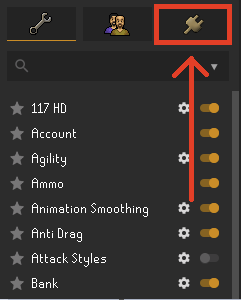
Open the Configuration panel in RuneLite and select the Plugin Hub tab.
3. Search for a Plugin
Type the name, e.g., “Quest Helper.” Built-in plugins such as Tile Indicators are already installed. Find them in the Configuration panel and switch them on.
4. Toggle It On
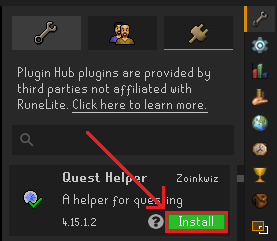
For a Plugin Hub plugin, click Install. For a built-in plugin, click the switch next to it in the Configuration tab.
5. Customize Settings
Most plugins have settings you can change from the plugin list.
Final Thoughts
RuneLite plugins enhance visibility, improve mechanics, and make OSRS more enjoyable. Whether you’re bossing, skilling, questing, or just exploring the world for the first time, the right plugins can save time, improve your game knowledge, and increase your efficiency.
With this guide, you now have the core RuneLite plugin setup, a foundation that will help you progress faster and enjoy Old School RuneScape to the fullest.
How we checked this guide
- Built-in plugins: the RuneLite source code on GitHub (runelite/runelite), checked on 2 October 2026 and re-checked on 4 October 2026. All built-in plugins named here were still present.
- Plugin Hub plugins: each plugin’s Plugin Hub entry and its own repository README (runelite/plugin-hub), re-checked on 4 October 2026. All 9 were still listed.
- Client approval: the OSRS Wiki RuneLite page, checked on 4 October 2026.
- Not checked in a running client: screen positions and button icons can change between RuneLite versions.
- Who did this: an AI editor checked the plugins and edited this guide from the sources above.
Screenshots: the RuneLite wiki and Plugin Hub plugin pages on GitHub (BSD 2-Clause licence). Game content © Jagex.