



Two ways to give us access
Recommended · Safest
1. Send a session with /session
Your email and password are never shared with your booster. The session is only valid for the one character you pick, and gives no access to the other characters on your Jagex Account. When the job is done, you end the session yourself.
2. Send your login with /login
Type your Jagex email and password into /login, and your bank PIN into the optional bank_pin box (your booster never sees your PIN). Your booster opens your login through a private button, and you get a message each time they do. Jagex may ask for a login code each time they log in, so you will need to send it with /code when your booster asks.
Set a temporary password first and change it after.
What is a Jagex session?
When you log in through the  Jagex Launcher, Jagex gives your computer a session: a pass that proves you are already logged in, a bit like the cookie that keeps you signed in to a website. A session is not your login. Your login is your email and password, and it opens your whole Jagex Account. A session is a pass for one character only, with no email or password in it. When you share a session, your booster can play that one character — your login stays with you.
 RuneLite explains how it works with Jagex Accounts here: Using Jagex Accounts.
How to get your session (Windows)
Watch the short walkthrough, or follow the written steps below it.
Share your Jagex session
Let your booster play one character, without giving them your email or password.
Share your Jagex session
Your booster plays one character. Your email and password stay with you. You need Windows and about 3 minutes.
Copy these
--insecure-write-credentials%USERPROFILE%\.runeliteWritten steps
- 1
Check your
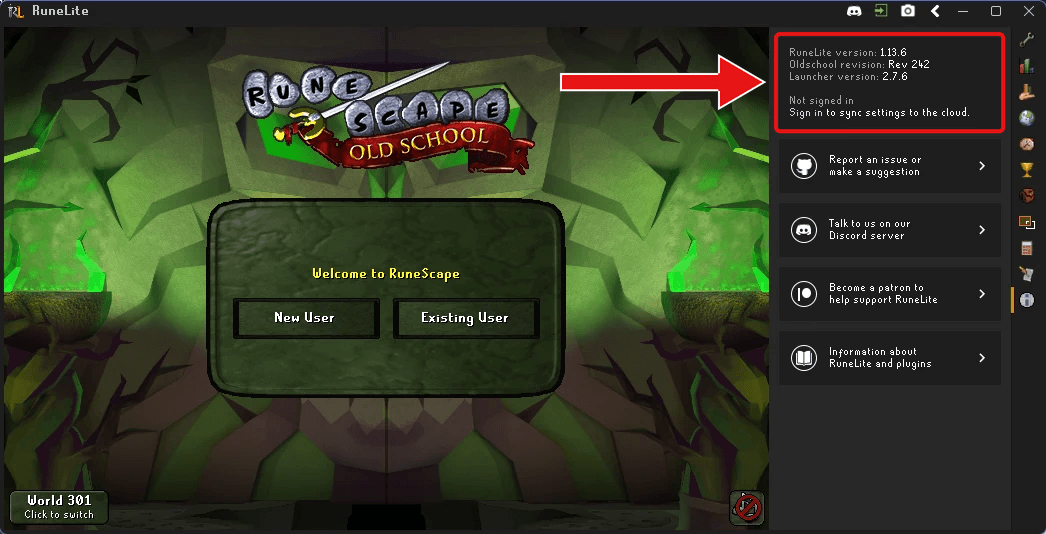
RuneLite launcher is version 2.6.4 or newer.Open RuneLite, click the (i) button at the bottom of the right sidebar and read Launcher version. If yours is older than 2.6.4, download the latest launcher from runelite.net first.
- 2
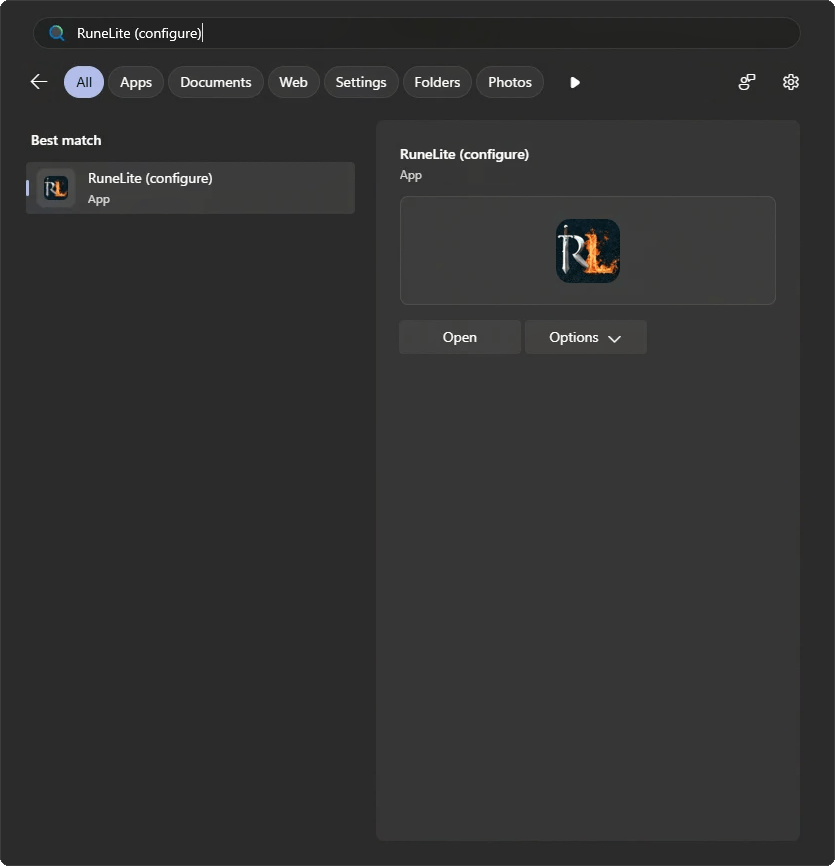
Close RuneLite. Search for RuneLite (configure) in the Windows Start menu and open it.
- 3
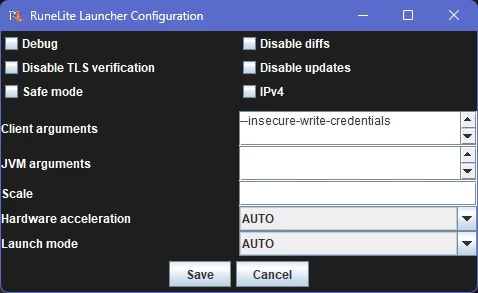
In Client arguments, type
--insecure-write-credentialsand click Save.Type it exactly as shown, with the two dashes at the start.
- 4
Open the
Jagex Launcher, log in, pick the character we will play on, and launch RuneLite.RuneLite saves the session for that character while it starts.
- 5
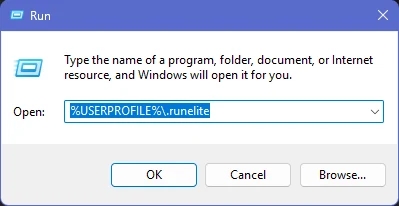
Press Windows key + R, type
%USERPROFILE%\.runeliteand click OK.This opens your RuneLite folder.
- 6
Right-click credentials.properties and choose Edit in Notepad.

- 7
In your order ticket on
 Discord, type
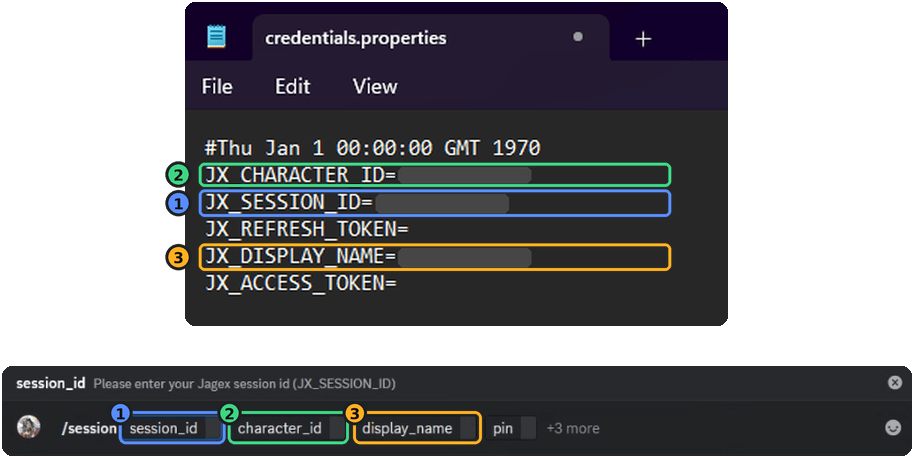
/sessionand copy each value into its box.JX_SESSION_IDgoes in session_idJX_CHARACTER_IDgoes in character_idJX_DISPLAY_NAMEgoes in display_name- Your bank PIN goes in pin. No PIN? Type
0000. - Copy only the part after the = sign. Leave the other optional boxes empty.
While your booster plays, stay logged out of that character: logging in kicks them off.
Keep these values private. Never send the file itself and never paste the values in a chat message. Type them only into /session, which hides what you type from everyone else. Our staff will never ask for them anywhere else.
When the job is done
- 1
End your active sessions.
Log in to your Jagex Account at account.jagex.com and end your active sessions. It takes one click — Jagex ends all of them at once, not just the one you shared, so you will be signed out of your own launcher too. Just log back in afterwards. Jagex shows how here: Manage active sessions.
- 2
Turn the setting off (optional).
Open
RuneLite (configure) again, delete --insecure-write-credentialsfrom Client arguments and click Save. - 3
Delete the credentials file (optional).
Delete credentials.properties from your
%USERPROFILE%\.runelitefolder.
Using a Mac, or stuck on a step? Ask in your order ticket and a manager will walk you through it.